
Documentation
Smart Events User Guide
Version 1.0.0 · Doxfen (Private) Limited
Smart Events gives you visual event sequences for Unity. Build gameplay, UI and feedback in the Inspector, without glue scripts. This guide covers installation, the quick start, every action, values, ready-made components, debugging, scripting and troubleshooting.
1. Welcome
Smart Events is a drop-in replacement for UnityEvent that can do things over time. Declare an event in a script the same way you would a UnityEvent, then call Invoke(). In the Inspector, each event holds a list of actions that run from top to bottom: wait, check a condition, loop, animate, play a sound, spawn, update the UI, load a scene, call any method, and more.
Small gameplay sequences that normally each need their own script (“open the door, wait, play a sound, fade the light”, “when the player enters, show a message for two seconds”) are built right in the Inspector.
Who is it for?
Programmers who are tired of writing one-off glue scripts, and designers who want to build and tweak behaviour without waiting for code.
What you get:
- 19 action types, from Wait and If to Audio, Scene changes and more, plus 20 UI operations and 12 tween types.
- Events with values:
SmartEvent<int>,SmartEvent<GameObject, float>… The values flow into conditions, texts and method parameters. - 11 ready-made components you can add to any object without code: Lifecycle, Update, Trigger (3D/2D), Collision (3D/2D), Pointer (click/hover), Timer, Key, Visibility and Event Channel Listener.
- Reusable assets: Smart Sequences (action lists saved as assets) and Event Channels (global events).
- Global values: read or set any static value (screen size, time scale, FPS lock, your own static fields).
- Live debugging: in Play Mode, running actions light up in the Inspector, and events get an Invoke button.
2. Requirements
| Item | Details |
|---|---|
| Unity | Unity 6 (6000.0) or newer. Developed and tested with Unity 6.3. |
| Render pipelines | Built-in, URP and HDRP (Smart Events has no rendering code). |
| Platforms | All platforms, including IL2CPP (WebGL, mobile, consoles). |
| Required packages | uGUI (com.unity.ugui, includes TextMesh Pro). Installed by default. |
| Optional | Input System package (used by Key Events when installed). Physics and Physics 2D modules (used by the Trigger and Collision components when enabled). |
3. Install and try the demo
- Import Smart Events from the Package Manager (My Assets). Everything is inside
Assets/Doxfen Studios/SmartEvents. - Open the demo:
Window > Doxfen > Smart Events > Open Demo Scene, then press Play. - If Unity asks to import TMP Essentials, click Import TMP Essentials.
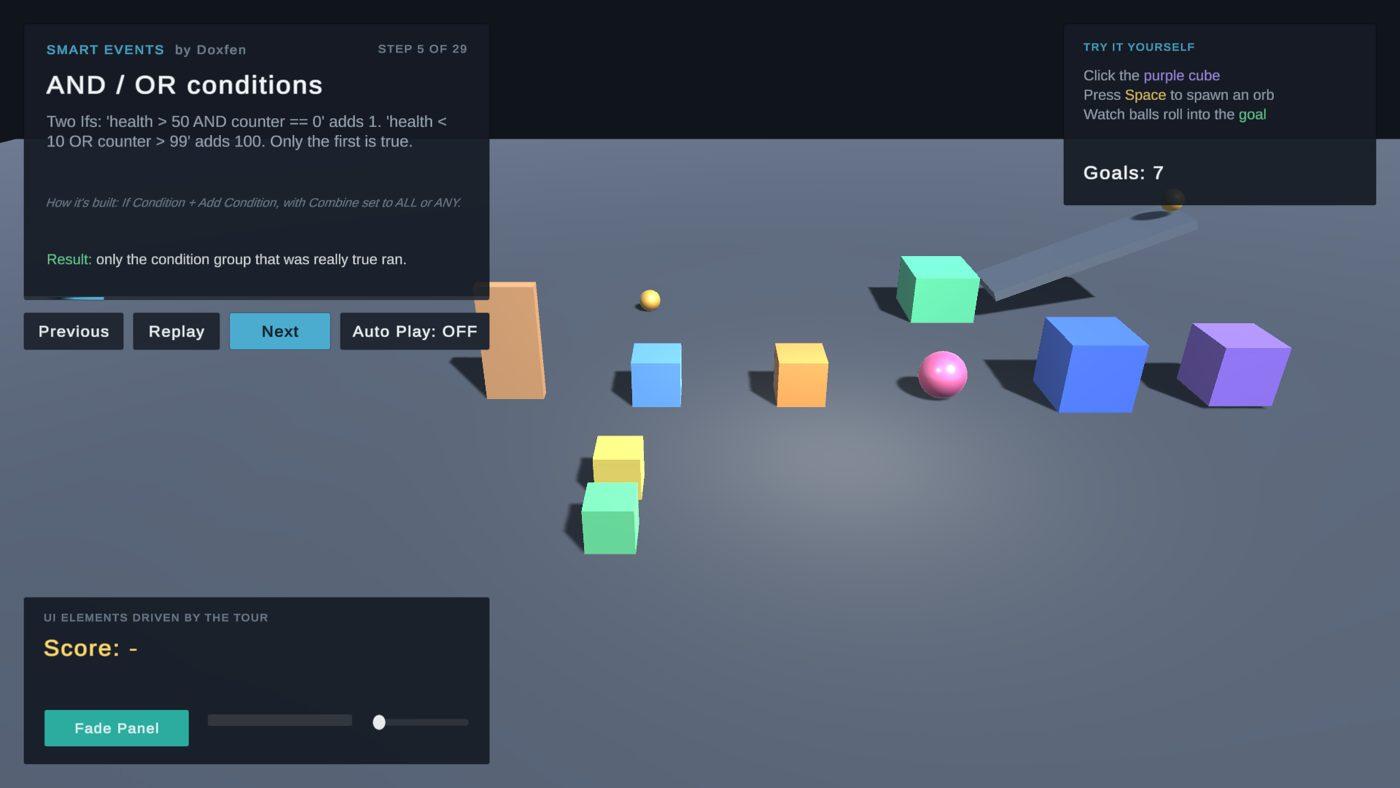
The demo is a guided tour of 29 steps in 11 short chapters. Each step says what will happen and what to watch, a blue marker highlights the object it is about, and the result appears when it is done. Use Previous / Replay / Next (or the arrow keys), or let Auto Play run. In the purple “Try It Yourself” area you can click the cube, press Space, and watch balls roll into the goal.
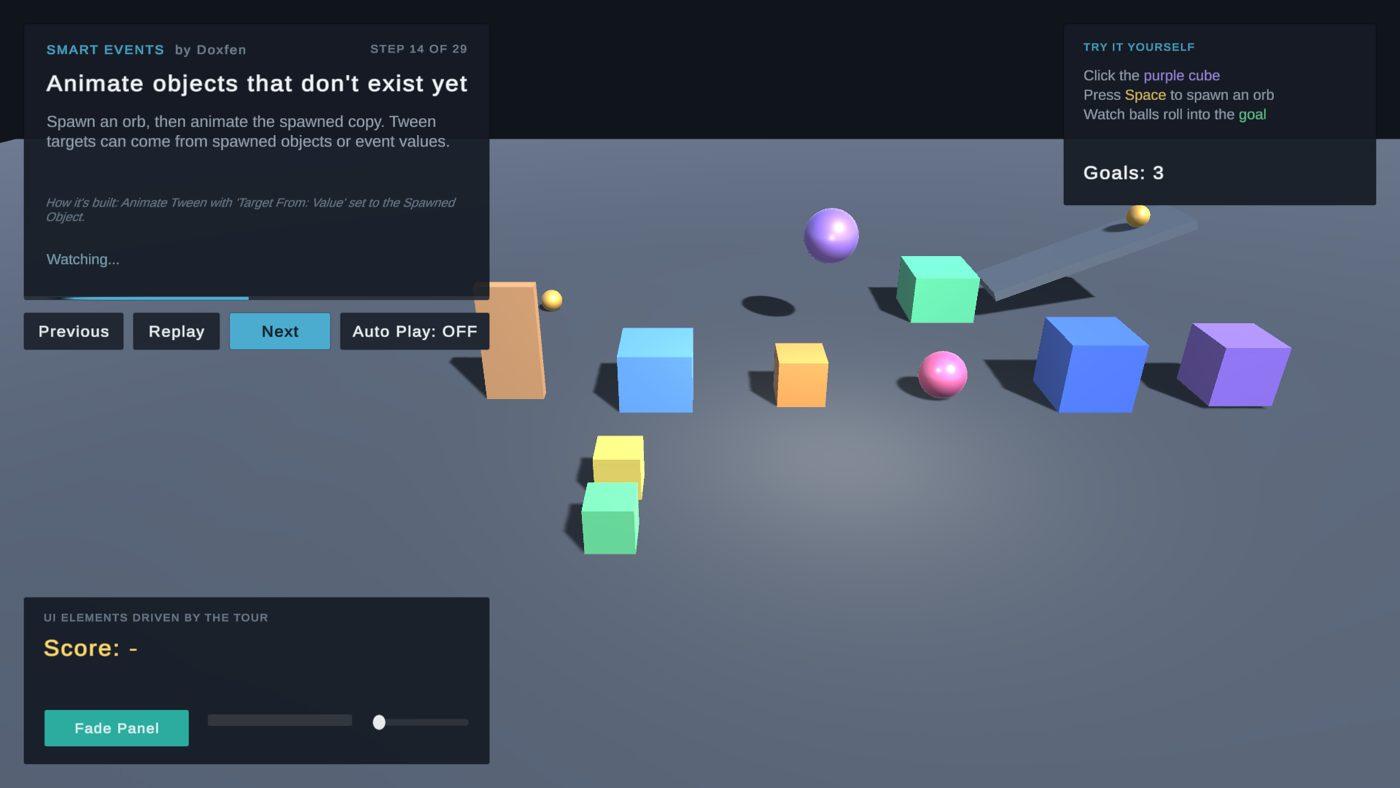
To see how any step is built, select the Smart Events Showcase object and open Steps in the Inspector (the tour shows the element number, and Show in Inspector selects it for you).
| Folder | Contents |
|---|---|
| Runtime | The Doxfen.SmartEvents assembly: events, actions, components and the runner. Included in builds. |
| Editor | The Doxfen.SmartEvents.Editor assembly: the Inspector UI. Never included in builds. |
| Demo | The showcase scene, its scripts (Doxfen.SmartEvents.Demo assembly), prefabs, assets and a sound. Optional: delete it at any time. |
| Documentation | This guide (.pdf and .md). |
To uninstall, delete the SmartEvents folder. Smart Events never changes project settings or other packages.
4. Quick start
Step 1: declare an event in any script.
using Doxfen.UtilityTools.SmartEvents;
using UnityEngine;

public class Door : MonoBehaviour
{
    public SmartEvent OnOpened;          // no value
    public SmartEvent<int> OnKeysChanged; // passes an int

    public void Open() => OnOpened.Invoke();
}
Step 2: add actions in the Inspector. Click +, choose an Action Type (the list is searchable) and fill in its fields.
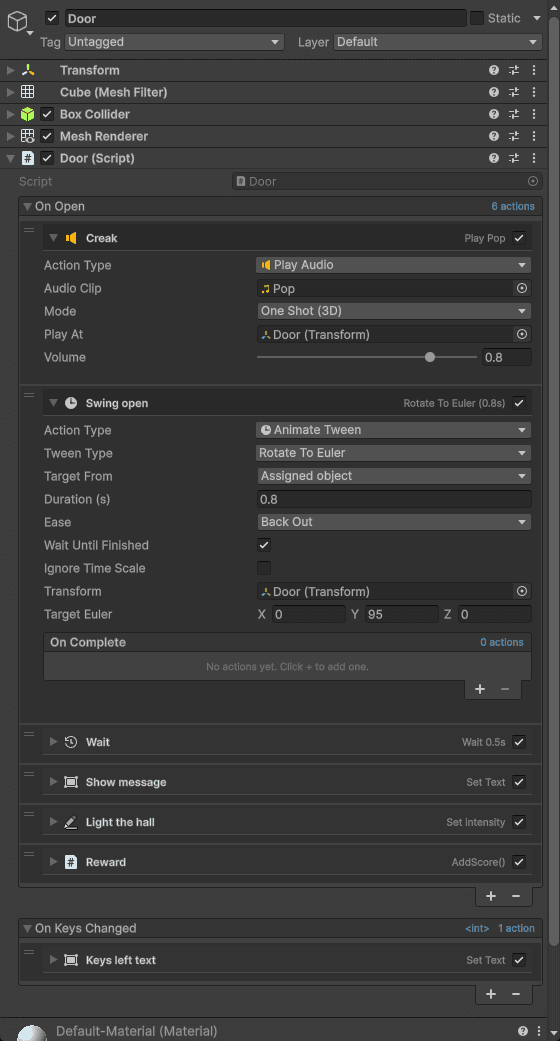
Step 3: invoke it. Call OnOpened.Invoke() from code, or press the Invoke button that appears on every event in Play Mode.
No code at all?
Add a ready-made component such as Add Component > Doxfen > Smart Events > Trigger Events (3D) and build the whole behaviour in the Inspector.
5. How it works
Actions run top to bottom. Instant actions (set a value, call a method, play a sound) happen immediately. Wait, Wait Until, Loop and tweens that wait for completion pause only this event. The rest of the game keeps running.
Every invoke is independent. Invoke the same event twice and two copies run side by side, each with its own values and its own spawned objects.
It is safe. If one action fails (for example a method throws an exception), Smart Events logs the error with the action’s name and the rest of the event still runs. Missing targets are skipped with a clear warning.
It survives scene loads. A sequence like “fade out, load scene, fade in” keeps running. A single hidden runner object named [SmartEvents] drives every sequence, tween and sound.
Working with actions in the Inspector
| To… | Do this |
|---|---|
| Add an action | Click + under the list |
| Change its type | Use the Action Type dropdown (type to search) |
| Collapse or expand it | Click its header |
| Rename it | Double-click its header, or right-click > Rename |
| Duplicate, delete, collapse all | Right-click the header |
| Disable it temporarily | Untick the checkbox on the right of the header |
| Reorder | Drag the handle on the left |
| Fold the whole event | Click the event’s title |
6. Values: where data comes from
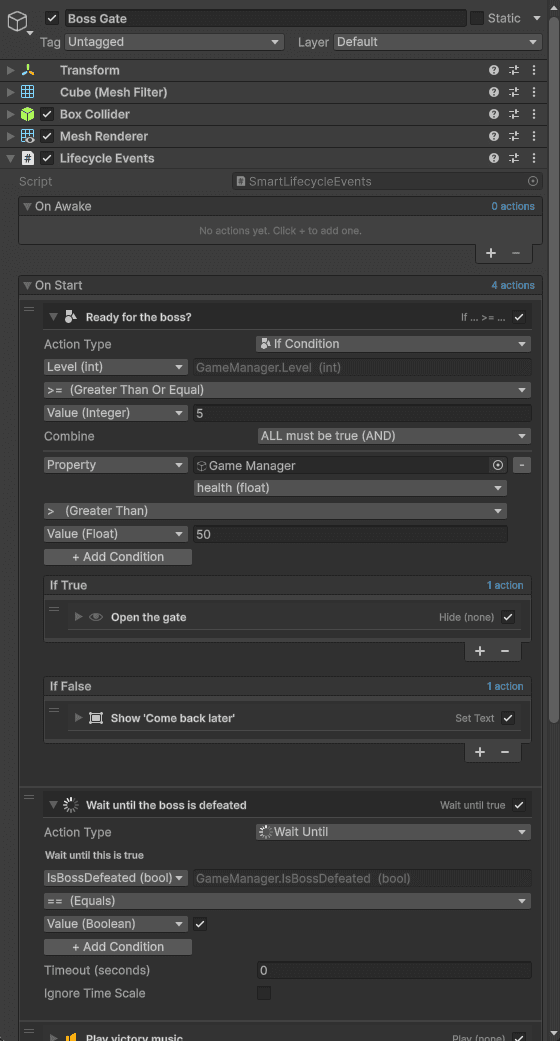
Most fields have a small dropdown on their left that chooses where the value comes from:
| Source | Meaning | Example |
|---|---|---|
| Value | A fixed value typed in the Inspector | 3, “Hello”, a GameObject |
| Property | A public field, property or no-argument method of a component, read when the action runs | Health > current |
| Event Variable | One of the values the event was invoked with | the 3 in OnKeysChanged.Invoke(3) |
| Loop Index | The current iteration of the nearest Loop | 0, 1, 2… |
| Spawned Object | An object created by Spawn Object earlier in the same list | the bullet just spawned |
| Global | Any static value, from Unity or from your own scripts | Time.timeScale, Screen.width, GameManager.Score |
Complex values (lists, structs, components) show an extra row to read their Count, one Element or a Field inside them, for example transform > position > x.
Global values
Global values are grouped in the dropdown:
- Smart Events: FPS, frame time, resolution, aspect ratio, clock, date, battery %, online, is paused, active scene, memory.
- Unity: Time, Application (FPS lock, platform…), Screen, Quality (vSync), System Info (device, CPU, GPU, RAM, battery), Audio, Cursor, Physics, Rendering, Camera.main, Random.
- Your Scripts: every public static field and property in your project’s scripts, listed automatically.
Writable values (marked as such) can be changed with Set Property Value, for example to lock the frame rate with Application.targetFrameRate.
7. Action reference
Logic
| Action | What it does |
|---|---|
| Invoke Method | Calls a public method on a GameObject, a component or an asset (such as an Event Channel). Parameters can be fixed values, an Event Arg or the Loop Index. Supported parameter types: numbers, bool, string, enums, Vector2/3/4, Quaternion, Color, Rect, any Unity object, and [Serializable] structs or classes. |
| If Condition | Compares two values (== != > < >= <=) and runs If True or If False. Add more comparisons with + Add Condition and combine them with ALL (AND) or ANY (OR). |
| Randomizer | Runs one enabled action from its pool, chosen at random. Any action type works in the pool. |
| Set Property Value | Writes a value into a public field or property, including one field of a struct (position.x) or a Global value. |
| Invoke Another Event | Invokes a SmartEvent on another object and passes this event’s values on when the types match. Endless loops (events invoking each other forever) are stopped automatically. |
Flow
| Action | What it does |
|---|---|
| Wait Delay | Pauses this event for N seconds. Tick Ignore Time Scale to keep counting while the game is paused. |
| Wait Until | Pauses until a condition is true (checked every frame), with an optional Timeout. |
| Loop | Repeat runs its body N times. While runs while a condition is true, at most one iteration per frame, so it can never freeze the game. Max Iterations is a safety cap. |
| Run Sequence | Runs a Smart Sequence asset (see Reusable assets) on a Target object and waits for it to finish. |
GameObject
| Action | What it does |
|---|---|
| Toggle GameObject | Activate, Deactivate or Flip the current state. |
| Spawn Object | Instantiates a prefab, optionally at a Transform and/or under a parent, optionally destroyed after a delay. Later actions can target it as Spawned Object. |
| Destroy Object | Destroys a scene object, an event value or a spawned object, with an optional delay. |
| Clear Children | Destroys all children of a Transform, optionally one by one. |
Audio and game
| Action | What it does |
|---|---|
| Play Audio | Plays a clip through your Audio Source, as a 2D/3D one-shot, or as a loop that the next run stops. Sounds keep playing across scene loads. |
| Scene Management | Load a scene by name (drag the scene asset in) or by index, reload the current scene, or quit (stops Play Mode in the Editor). Warns when the scene is not in Build Settings. |
| Time Control | Sets Time.timeScale (1 = normal, 0.5 = slow motion, 0 = paused). |
UI
| Action | What it does |
|---|---|
| Update UI | Text (set, append, clear, bold, italic, underline), colors, sliders, Canvas Group alpha (with fade), interactable and raycast, sprites, fill amount, anchored position, size, buttons, toggles, dropdowns, input field focus, scroll to top or bottom, rebuild layout, and a UI shake. |
Animation
| Action | What it does |
|---|---|
| Animate Tween | Move, rotate, scale, punch, shake (position or rotation), fade or color sprites and UI, move UI elements, fill images, or type text out (rich text supported). |
Tween options:
- Target From: an object assigned in the Inspector, or a Value, so you can animate spawned objects and event values.
- Wait Until Finished: the next action waits for the tween to end.
- Ignore Time Scale: keeps animating while the game is paused.
- On Complete: actions that run when the tween finishes.
Each object has one tween per property (position, rotation, scale, color…). A new tween replaces the old one, and shakes and punches first return the object to its resting pose, so repeated effects never drift.
Debug
| Action | What it does |
|---|---|
| Writes a value to the Console with an optional label. |
8. Ready-made components
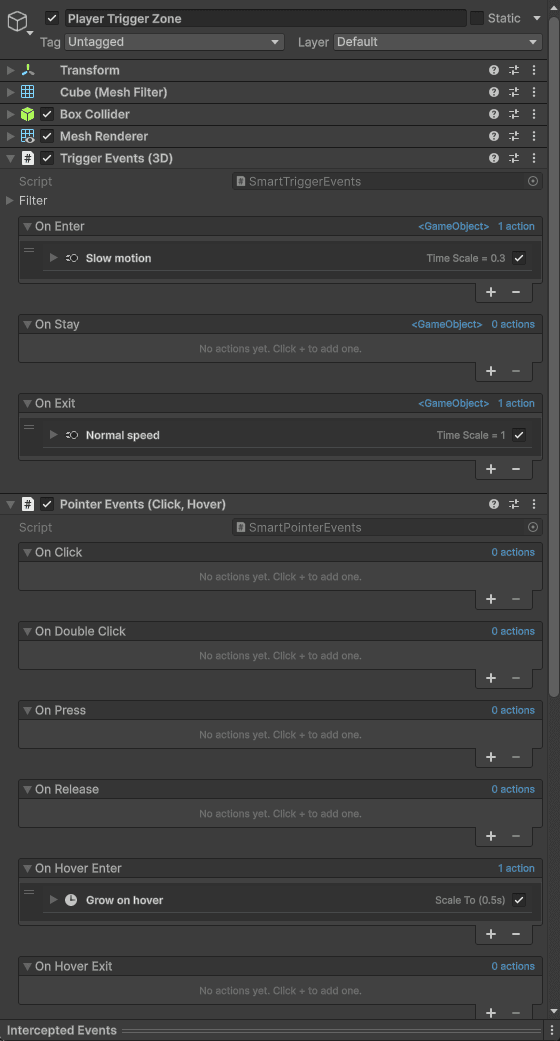
Add them with Add Component > Doxfen > Smart Events. Each one already contains the right events, so you only add actions.
| Component | Events | Event values |
|---|---|---|
| Lifecycle Events | On Awake, On Start, On Enabled, On Disabled, On Destroyed | None |
| Update Events | On Update, On Late Update, On Fixed Update. Optional Interval (for example every 0.5 s) and Ignore Time Scale. | Seconds since last call |
| Trigger Events (3D / 2D) | On Enter, On Stay, On Exit. Filter by tag and layers. | The other GameObject |
| Collision Events (3D / 2D) | On Hit, On Touching, On Separate. Minimum Impact Speed. | The other GameObject, impact speed |
| Pointer Events | On Click, On Double Click, On Press, On Release, On Hover Enter, On Hover Exit. Works on UI; for 3D/2D objects add a Physics Raycaster to the camera. | None |
| Timer | On Tick, On Finished. Delay, Interval, Repeat (0 = forever), Ignore Time Scale. Control it with Play, Pause, Resume, Stop, Restart. | Tick number |
| Key Events | On Pressed, On Held, On Released for any key. Works with both input systems. | None |
| Visibility Events | On Became Visible, On Became Invisible (needs a Renderer). | None |
| Event Channel Listener | On Raised, when its Event Channel asset is raised. | The GameObject passed to Raise |
Tip
Trigger and Collision components follow Unity’s rules: one of the two objects needs a Rigidbody (or Rigidbody 2D), and a trigger needs a collider with Is Trigger ticked.
9. Reusable assets: Sequences and Event Channels
Smart Sequence
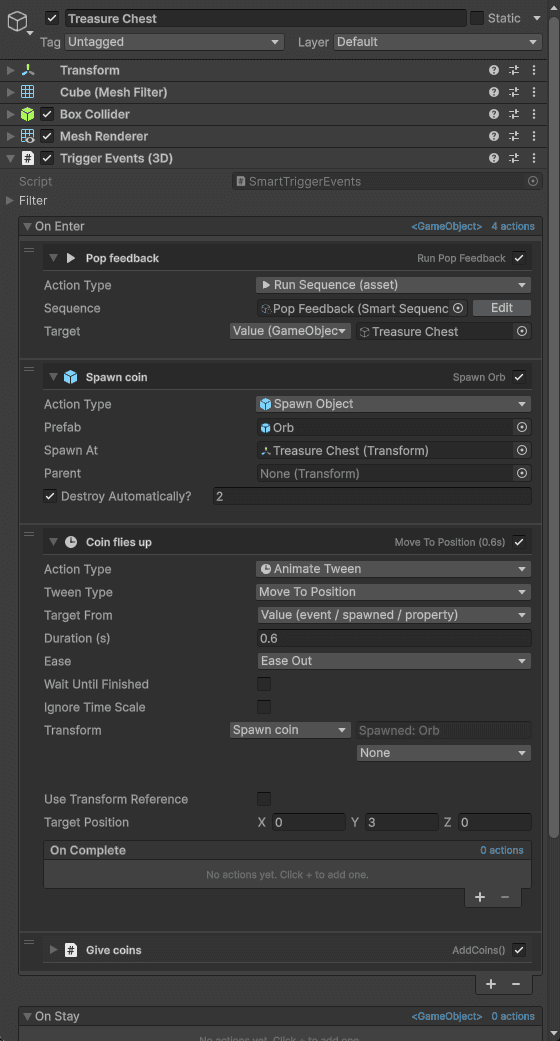
A Smart Sequence is an action list saved as an asset, for example “Hit Feedback”, “Coin Pickup” or “Open Panel”. Build it once, then use it everywhere with the Run Sequence action.
- Create one:
Assets > Create > Doxfen > Smart Events > Smart Sequence(or the New button on a Run Sequence action). - The sequence receives one value, its Target GameObject. Inside, use
Event Variable 0: Targetas the target of tweens, sounds and method calls. - Assets can’t reference scene objects. Use the Target, prefabs, Global values or spawned objects instead.
- From code:
mySequence.Play(targetGameObject);
Event Channel
An Event Channel is a global event saved as an asset, for example “Player Died” or “Goal Scored”. Any object can raise it, and every Event Channel Listener that uses it reacts. The two sides never reference each other.
- Create one:
Assets > Create > Doxfen > Smart Events > Event Channel. - Raise it with Invoke Method (Target: the channel asset, Function:
Raise), or from code:channel.Raise(someObject); - In Play Mode, the channel’s Inspector shows its listener count and a Raise Now button.
10. Live debugging
In Play Mode the Inspector shows what is happening:
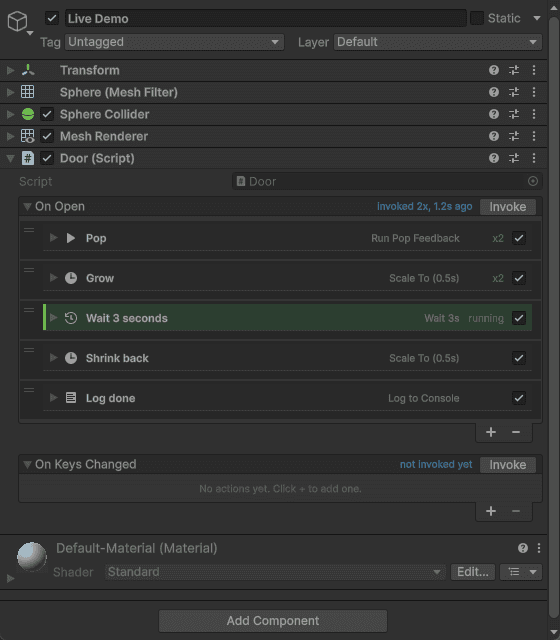
- Each event shows how many times it was invoked and how long ago, plus an Invoke button to run it right away (event values use their defaults).
- An action flashes when it runs. Actions that are still running (Waits, Loops, tweens being waited for) show a green bar and the word “running”. A counter shows how often each action ran.
This makes it easy to see where a sequence is waiting and to test events without writing code.
11. Scripting
public SmartEvent onDone;            // also SmartEvent<T0>, <T0, T1>, <T0, T1, T2>, <T0, T1, T2, T3>

onDone.Invoke();                     // run Inspector actions, then code listeners
onDone.AddListener(OnDone);          // code listeners, like UnityEvent
onDone.RemoveListener(OnDone);
onDone.RemoveAllListeners();
onDone.On(A).On(B);                  // chain listeners
onDone.StopRunningActions();         // stop sequences that are still running
onDone.InvokeWithDefaults();         // invoke with default values
bool any = onDone.HasAnyListeners;   // also HasInspectorActions, HasCodeListeners
onDone.Actions.Add(new SmartEventAction()); // build actions from code
Lists, arrays and subclasses (class DamageEvent : SmartEvent<int> {}) all work in the Inspector.
An exception thrown by a code listener is logged and doesn’t break the caller.
All code lives in the Doxfen.UtilityTools.SmartEvents namespaces and in its own assemblies, so it never clashes with your project.
12. Builds, IL2CPP and performance
Smart Events was tested in player builds on Mono and on IL2CPP (WebGL), both with Managed Stripping Level: High.
Invoke Method, Property, Global values and Set Property Value use reflection. Unity’s code stripping can remove members that are only used this way. If a call works in the Editor but not in a build:
- add
[UnityEngine.Scripting.Preserve]to the method, field or property, or - list the assembly or type in a
link.xmlfile, or - lower Managed Stripping Level.
When a member is missing at runtime, Smart Events logs a warning that names it.
Performance
- An event with no Inspector actions costs almost nothing (100,000 invokes took under 1 ms in our tests).
- One shared runner drives every sequence. Starting 2,000 sequences at once took about 4 ms.
- Live-debug tracking exists only in the Editor and is compiled out of builds.
13. Limitations
- Only public methods, fields and properties can be called or read (static ones through Global).
- Events carry up to 4 values (
SmartEvent<T0, T1, T2, T3>). - Loop Index is the index of the innermost loop.
- While loops run at most one iteration per frame. Use Repeat for instant loops.
- Smart Sequence assets can’t reference scene objects (a Unity rule for assets). Use the Target value.
- The built-in tweens are lightweight. They don’t replace a full tweening library (no paths or custom curves).
- Renaming a method that an Invoke Method action calls breaks that call, the same as with UnityEvent. A warning names the missing method.
- Smart Events can be edited on one selected object at a time (multi-object editing shows a notice).
14. Troubleshooting
| Problem | Fix |
|---|---|
| A Wait never finishes | The game is paused (Time.timeScale = 0). Tick Ignore Time Scale on that Wait. A warning tells you when this happens. |
| Load Scene does nothing | Add the scene to File > Build Profiles (Build Settings). The Inspector shows a warning. |
| A method is not in the Function list | It isn’t public, or a parameter uses an unsupported type (for example ref / out, delegates, interfaces). |
| Works in the Editor, not in a build | Code stripping. See Builds, IL2CPP and performance above. |
| Pointer Events don’t react on a 3D object | Add a Physics Raycaster to the camera, give the object a collider, and make sure the scene has an EventSystem. |
| Trigger Events don’t fire | One object needs a Rigidbody, and the zone’s collider needs Is Trigger. Check the tag and layer filter. |
| Demo text is invisible | Import TMP Essentials: Window > TextMeshPro > Import TMP Essential Resources. |
15. Support
Email info@doxfen.com. Please include your Unity version and a screenshot of the event.
Smart Events is licensed under the Unity Asset Store EULA. It contains no third-party code.